

PPT Master Tutorial: How to Generate AI PPT with Company Templates in One Click (With WorkBuddy Practice)

3 months ago
Many AI PPT tools have a problem: they look flashy, but when you actually use them, they fall short by just a little bit...
You enter a topic, and it quickly generates a dozen pages: titles are there, charts are there, and the logic is barely acceptable.
But when you open it and examine closely: the brand colors are wrong, the fonts are wrong, the layout is wrong, the LOGO position is wrong, and your mood feels off...
In the end, you have a PPT, but it also leaves you with a pile of rework.
The Problem Isn't Generation, It's the Template
Many people, when first using AI PPT, pin all their hopes on generating from a single sentence.
For example, a wishful input:
Help me create a 2026 AI Strategic Planning PPT!
But the topic is only the first layer of need. The real trouble is the second layer:
This PPT needs to look like it was made by your company.
Requirements may include fixed brand colors, fixed fonts, fixed cover, fixed table of contents, fixed ending page, and even icon style, margins, and title position.
Most previous AI PPT tools simply match topic words with a template library.
It picks a template from a bunch of outdated ones to use, but it doesn't know what your company looks like.
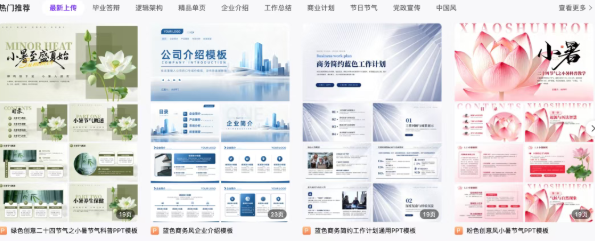
So no matter how fast it generates, you still have to edit page by page.
Change colors, change fonts, paste LOGO, adjust layout...
I Recently Came Across a PPT Skill Called PPT-master, Which Is Very Impressive.
It's perfect to try in WorkBuddy.
Its core is turning text requirements into editable PPTX files. Editable—this is very important.
PPT-master takes a different path:
First, understand your content needs, then combine with a template, and finally export an editable PPT file.
More importantly, it supports registering company templates.
Three Steps to Get It Running
Step 1: Install PPT-master.
If you know how to use the terminal, refer to the official website https://github.com/hugohe3/ppt-master.git. It's just three commands:
git clone https://github.com/hugohe3/ppt-master.git
cd ppt-master
pip install -r requirements.txt
This will download it locally and install the dependencies.
If you're very proficient with AI, you definitely know this trick: "Let AI do the work."
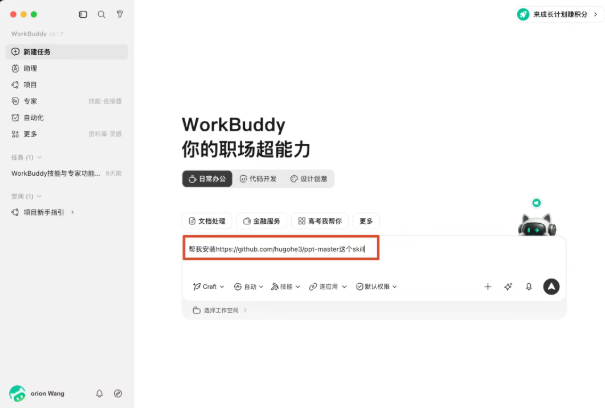
Spend some credits to get the dirty work done.
But it can be a bit heavy, not entirely its fault—network issues and the package size are also factors...
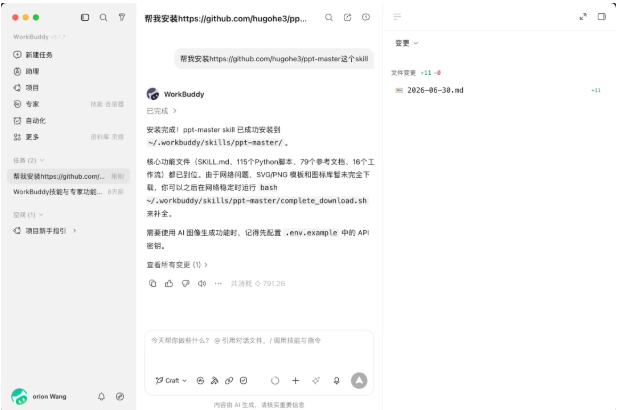
Step 2: Feed the Company Template.
This step is crucial.
Prepare a commonly used company PPT template, then in WorkBuddy, invoke the create-template workflow to register the template file into PPT-master's global template library.
You can say:
Use the create-template workflow to register my company's template file into the ppt-master global template library.
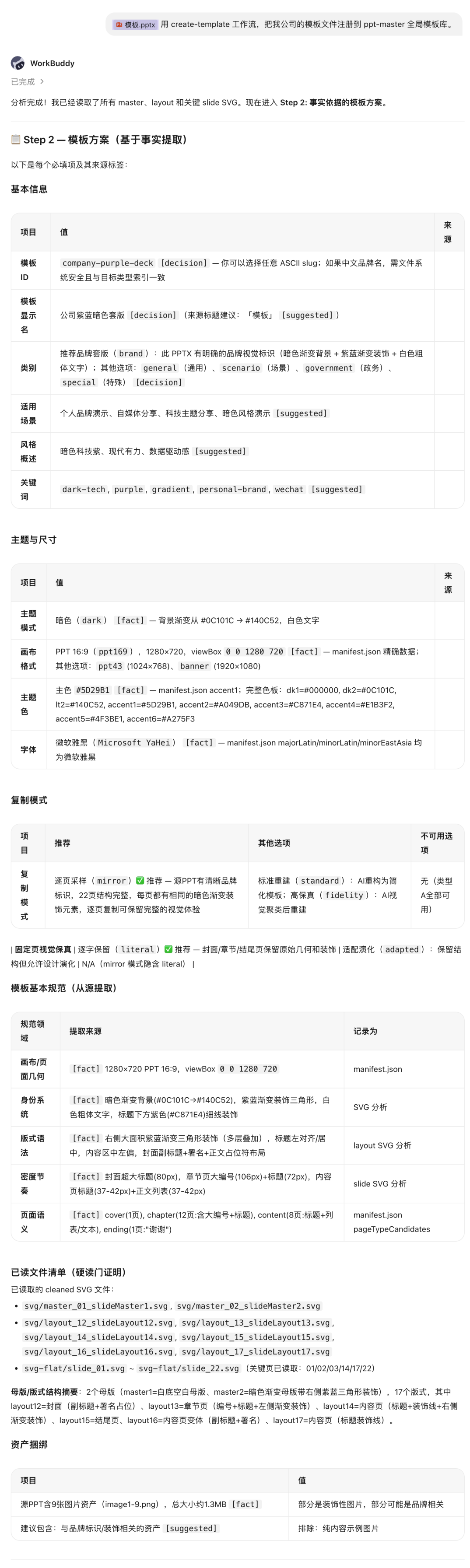
This is configure once, reuse many times.
Step 3: Generate PPT with One Sentence.
Once the template is registered, you can directly write your requirements.
For example:
Use the company template to generate a PPT with the topic 2026 AI Strategic Planning, audience is corporate executives, style should be conclusion-first, including cover, table of contents, industry trends, competitive analysis, core strategy, roadmap, milestones, execution plan, risk contingency, and thank you page. @skill:ppt-master
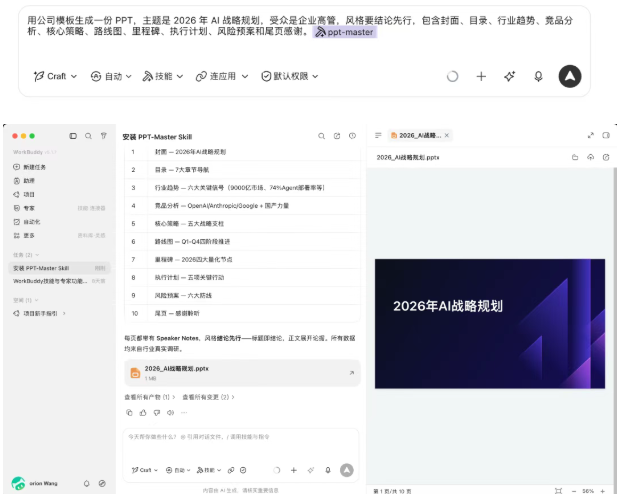
It's recommended to start with an existing company template to create a simple daily report PPT.
The topic can be simple, such as weekly review, training tutorial, sales proposal, etc.
After running, focus on three things:
- Does the template look right?
- Is the structure smooth?
- Is it easy to edit later?
If all are OK, then it can be directly integrated into the workflow as a productivity component.
The key point of AI making PPTs has never been about turning a sentence into an imagined masterpiece.
What's truly useful is reducing those repetitive tasks that have no technical content but take half a day each time.
That's the AI value that both employees and bosses need.
